All articles
Blog
How to Send Bulk WhatsApp Messages from Excel
W
Wonestop Team
Aug 12, 2026 · 4 min read
Wonestop Team
Aug 12, 2026 · 4 min read
If your customer database is sitting in an Excel sheet, sending messages one by one is not practical. Businesses often have hundreds or thousands of leads, customers, event registrations, or enquiries stored in spreadsheets.
The better approach is to send bulk WhatsApp messages from Excel using the official WhatsApp Business Platform. You can import your contact list, organize customers into segments, personalize messages, and launch campaigns without manually saving every number.
Here’s how the process works.
Excel itself cannot send WhatsApp messages. It works as the source of your customer data.
You first prepare your contacts in Excel and then import the file into a platform connected to the official Meta WhatsApp Business Platform. From there, you can send approved WhatsApp message templates to customers who have opted in to receive communication.
Platforms such as Wonestop allow businesses to import Excel contact lists and use the data for WhatsApp broadcasts, marketing campaigns, automation, and follow-ups.
The basic workflow is simple:
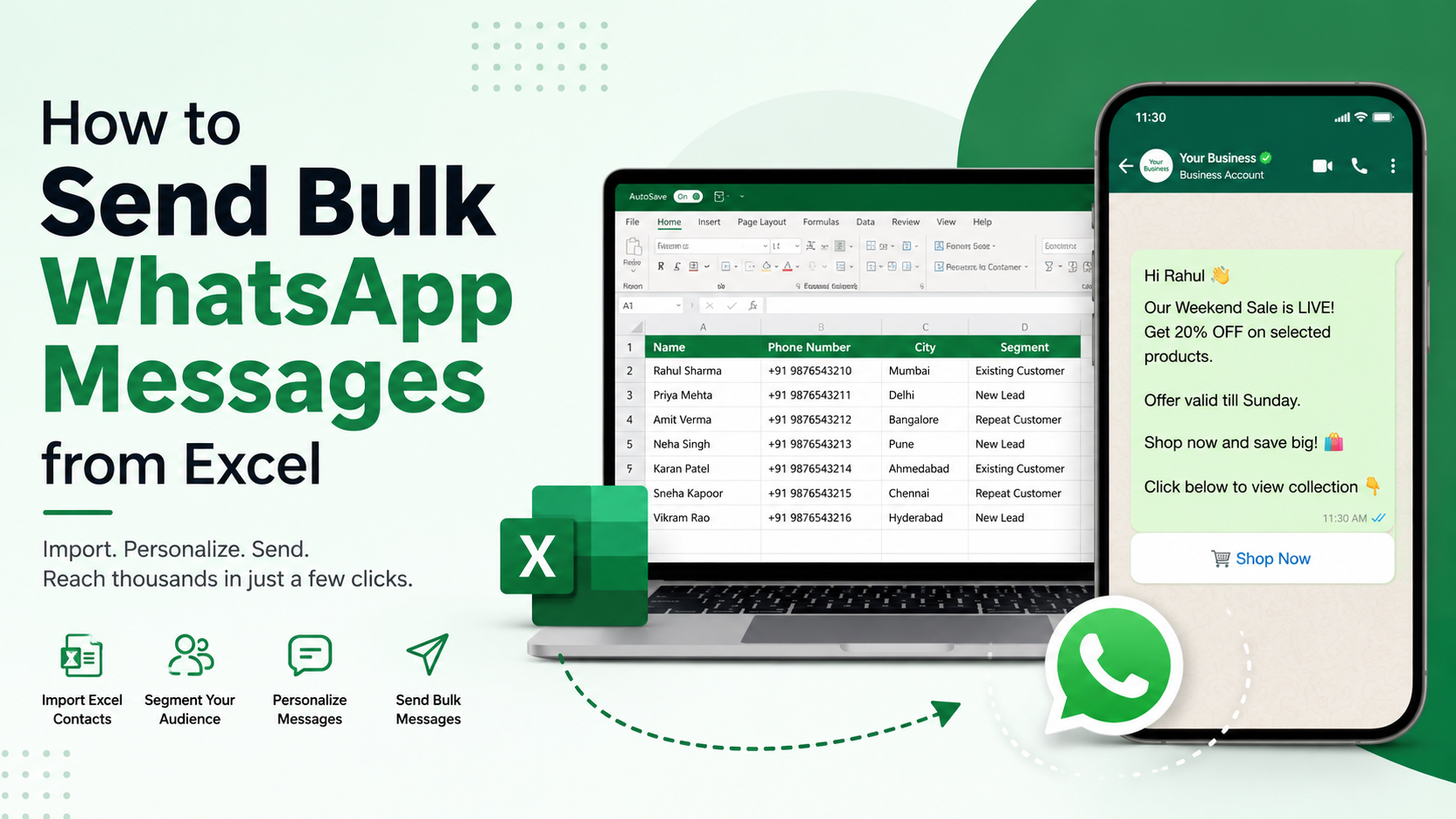
Excel Contact List → Import Contacts → Segment Audience → Create Message Template → Send Campaign → Track Results
Start by organizing your customer data.
Your spreadsheet may include:
| Name | Phone Number | City | Customer Type |
| Rahul | +9198XXXXXXXX | Mumbai | Existing Customer |
| Priya | +9199XXXXXXXX | Pune | New Lead |
| Aarav | +9197XXXXXXXX | Delhi | Repeat Customer |
Include the correct country code with every phone number and remove duplicate or outdated contacts before importing.
Depending on the platform, you may upload Excel directly or save the spreadsheet as a CSV file. WhatsApp Business platforms commonly use fields such as name, country code, phone number, email, location, tags, and custom attributes when importing contacts.
Next, upload your Excel customer database.
With Wonestop’s WhatsApp Excel Integration, businesses can import leads, customer databases, registrations, enquiries, and other contact lists without manually saving each number.
During import, fields such as name, phone number, email, company, location, and custom fields can be mapped to the corresponding customer information.
This turns an ordinary spreadsheet into an organized WhatsApp audience.
Don’t send every message to everyone.
Suppose an e-commerce business has 10,000 customers in Excel. Some purchased last month, some haven’t ordered for six months, and others only submitted an enquiry.
Instead of one generic campaign, create segments such as:
Segmentation makes your WhatsApp bulk messaging more relevant and reduces unnecessary messages.
For business-initiated messaging outside an active customer-service conversation, businesses generally use approved WhatsApp templates.
Instead of sending:
“SALE! Buy now. 20% OFF.”
Use customer data to make the message more useful:
“Hi {{name}}, our weekend offer is now live. Get 20% off selected products until Sunday. Tap below to view the collection.”
Variables can pull information such as a customer’s name or other mapped data into the message.
Current WhatsApp marketing platforms support this type of template-based personalization for bulk campaigns.
Once your contacts, segment, and template are ready, review the campaign and send it immediately or schedule it for later if your platform supports scheduling.
The important part is that the recipients should have opted in to receive WhatsApp messages from your business.
Avoid unofficial Chrome extensions, scripts, or tools that promise unlimited WhatsApp messages from random contact lists. Unofficial bulk-sending methods can put your WhatsApp account at risk. Official WhatsApp API-based platforms are the safer option for business messaging at scale.
Many businesses already manage customer information in spreadsheets. Instead of moving everything into a complicated system, Excel integration provides a practical starting point.
You can use your existing database for:
Promotional campaigns: Share sales, launches, and limited-time offers.
Lead follow-ups: Reconnect with prospects who previously enquired.
Appointment reminders: Remind customers about upcoming bookings.
Customer updates: Send relevant service or order information.
Re-engagement: Reach opted-in customers who haven’t purchased recently.
Wonestop also lets imported contacts be used across WhatsApp marketing, broadcasts, automation, and customer communication.
Use the C-S-P-M framework:
Clean → Segment → Personalize → Measure
Clean: Remove duplicates, incorrect numbers, and contacts without proper consent.
Segment: Group people based on behavior, location, interests, or customer stage.
Personalize: Use customer data instead of sending the same generic message to everyone.
Measure: Monitor delivery, engagement, replies, clicks, and conversions where your platform provides these metrics.
This turns bulk messaging from simple mass communication into targeted WhatsApp marketing.
If your customer data already lives in Excel, you don’t need to manually save thousands of contacts before starting a campaign.
Wonestop lets businesses import Excel contact lists, map customer information, create audience segments, and use those contacts for personalized campaigns, broadcasts, and automated follow-ups through the official Meta WhatsApp Business Platform.
Turn your spreadsheet into an active customer communication channel instead of leaving valuable leads sitting in rows and columns.
Ready to put your Excel customer database to work? Import your contacts with Wonestop and start reaching the right customers on WhatsApp.
Yes. Import your Excel or CSV contact list into an official WhatsApp Business Platform solution and use those contacts to create compliant WhatsApp campaigns.
Book a quick demo and we'll get your business live on the official WhatsApp Business API — fast.