All articles
Blog
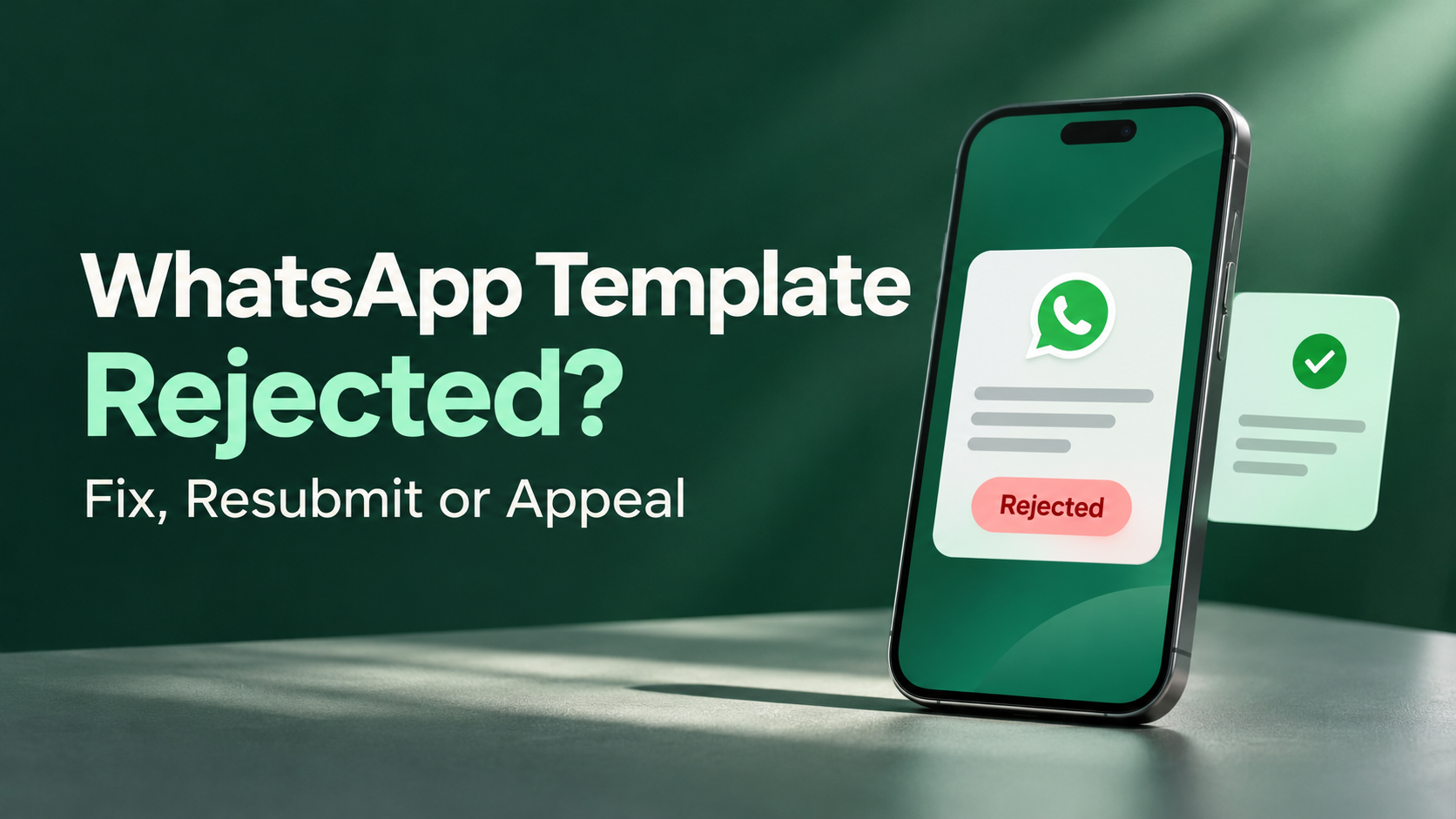
WhatsApp Template Rejected? How to Fix It, Resubmit or Appeal
W
Wonestop Team
Nov 9, 2026 · 5 min read
Wonestop Team
Nov 9, 2026 · 5 min read
Your WhatsApp campaign is ready to go. Then Meta marks your template “Rejected.” Should you change the wording, switch the category, or ask Meta to review it?
Start here: Open WhatsApp Manager → Message Templates and check the rejection reason. Fix and resubmit if the format, language, or category is wrong. Request a review if the template follows Meta’s rules and you believe it was rejected in error.
| What you find | What to do next |
| Broken placeholders, missing samples, or the wrong language selected | Correct the issue and submit the revised template for review. |
| A discount or offer inside a Utility template | Remove the offer to keep the message transactional, or submit the promotional version as marketing. |
| A duplicate of an existing approved template | Use the approved version if it fits the same purpose and language. |
| A rejection you believe is incorrect | Check whether Request Review is available in Business Support Home. |
| The template says “Pending” or “In Review.” | Wait for Meta’s decision and check the status before scheduling your send. |
The examples below use fictional customer and order details.
Variables insert details such as a name, order number, or appointment time. If you use numbered variables, keep them in sequence and put fixed wording around them. Give each placeholder a realistic sample value so the reviewer can see what customers will receive.
Before
{{1}}, you can collect your repaired watch using a ticket. {{3}}
After
Hi {{1}}, the watch on the repair ticket {{2}} is ready. Show this message at the service desk when you collect it.
In the first version, the message starts with a variable and skips from {{1}} to {{3}}. The rewrite fixes both issues. Use sample values such as Taylor and WR-2048 to show how the message will read.
Check what triggers the message and what it asks the customer to do. A shipping update tied to an existing order can use Utility. A discount for the next purchase makes the combined message marketing.
Submitted as Utility
Hi {{1}}, your order {{2}} has shipped. Get 15% off your next purchase with code NEXT15.
Utility rewrite
Hi {{1}}, your order {{2}} has shipped. Use the tracking button to see the latest delivery status.
If you also want to send the offer, use a separate marketing template and follow WhatsApp’s opt-in requirements.
Check that the language selected for the template matches the customer-facing text, including its buttons and footer. If the message only says “Your request has been processed,” tell customers which request. For example, “We’ve approved the return for the order. We’ll message you once the refund is issued.” Check for an existing template before submitting a near-identical copy.
If a payment reminder asks customers to reply with a full card number, remove that request. Direct them to your secure payment page instead. Check the underlying use case against WhatsApp’s policies before resubmitting. A change in wording alone cannot resolve an issue with the use case. WhatsApp Business Messaging Policy
If the template follows Meta’s rules and you believe the decision was incorrect:
For an appointment reminder, a review request could say:
This message goes only to customers with an existing booking. It confirms their appointment date and time and gives them a way to reschedule. Sample: “Hi Taylor, your appointment on 25 November at 2:30 p.m. is confirmed. Tap below if you need to reschedule.”
Your campaign can be ready while your template is still under review. With Wonestop, your team can create templates, preview the message, and see which versions are pending, approved or rejected before scheduling a send. See how Wonestop manages WhatsApp templates.
Want to see how this would work for your team? Bring one template you send regularly, such as an order update or appointment reminder. Book a Wonestop demo.
If Meta flagged a formatting problem, correct the message and resubmit it. If you believe the template follows the rules, ask your Meta business admin to check which review or support options are available for that template.
Book a quick demo and we'll get your business live on the official WhatsApp Business API — fast.