All articles
Blog
3 WhatsApp Flow Examples for Businesses: Quote Requests, Bookings, and Lead Qualification
W
Wonestop Team
Nov 12, 2026 · 5 min read
Wonestop Team
Nov 12, 2026 · 5 min read
A customer messages you on WhatsApp: “Can you send me a quote?” Five messages later, you’re still asking which service they need and where the job is. By the time you have enough details to reply, the customer may have moved on.
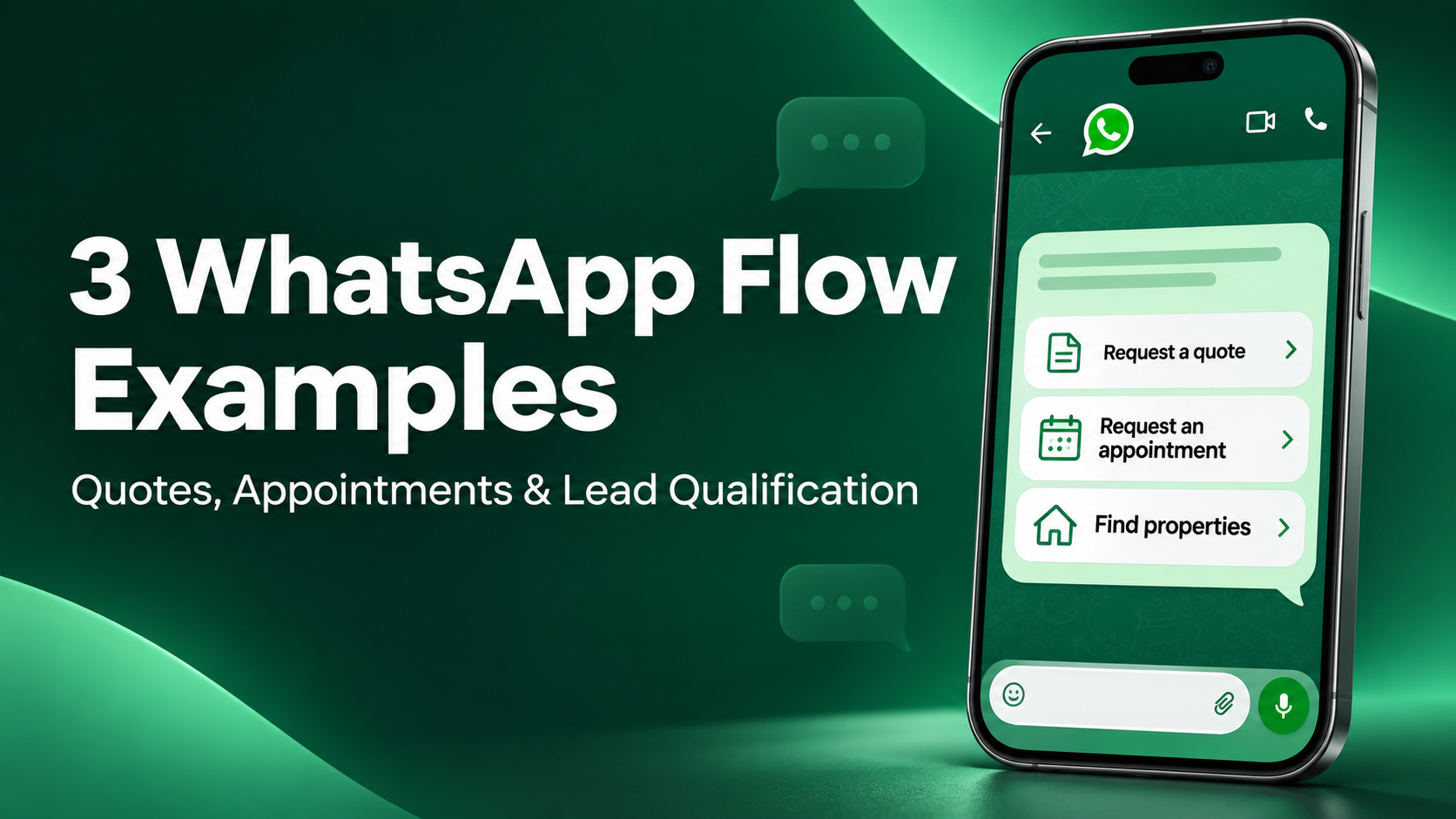
A WhatsApp Flow is an interactive experience on the WhatsApp Business Platform. Customers can open it from a message, choose options, fill in details, and submit a request inside WhatsApp. For your team, it means the first reply can move the enquiry forward because the basic details are already there. Official WhatsApp Flows overview
| What your team keeps asking | Flow to build | What happens after submission |
| “What work do you need, and where?” | Quote request | The service team reviews the details and replies with a quote or a question. |
| “Which date and time work for you?” | Appointment request | The booking team checks availability and confirms the slot. |
| “What area and budget are you looking at?” | Lead qualification | Sales follows up with relevant options. |
The examples below show what customers could see and how your team could respond.
A commercial cleaning company gets messages asking, “How much do you charge?” The team needs to know whether it’s a small office or a warehouse, where it’s located, and whether the customer wants a one-off visit or an ongoing service.
Message button: Get a quote
Questions to ask:
What the customer sees after submitting: “Thanks. We’ve received your quote request. Our team will review the details and reply here.”
Now the first reply can be specific: “Thanks for the details about your office. Could you share the approximate floor area so we can price the weekly service?” The customer only has one question left to answer.
If floor area affects every quote, ask for it in the Flow. If it only matters for some jobs, leave it for the follow-up.
A car service center receives booking messages while staff are helping customers at the counter. By the time someone checks WhatsApp, several people might have asked for the same Saturday morning slot.
An appointment flow can collect the type of service and the customer’s preferred time so staff can review requests with the necessary details.
Message button: Request an appointment
Questions to ask:
What the customer sees after submitting: “We’ve received your appointment request. We’ll check availability and confirm your slot here.”
Use “Request received” when someone still needs to check the calendar. Send “Appointment confirmed” once the slot is reserved. If you want customers to choose from live availability and reserve a slot immediately, check that your setup can read current availability and write the booking back to your calendar.
A buyer messages a real estate agency asking for available flats. The agent could send a broad brochure, but three answers would make the follow-up far more relevant.
Message button: Find properties
Questions to ask:
What happens after submission: Sales uses the answers to decide what to send. If a buyer wants a specific location and is ready to visit this month, share matching properties and suggest a viewing. If they’re still exploring, send an area guide or a short list they can review at their own pace.
Only ask a question if the answer changes what your team does next. For example, if buyers at every budget receive the same initial brochure, collecting a budget range may be more useful later in the conversation.
Once it’s live, review both Flow completions and what happens after submission. For a quote Flow, look at how many requests have enough information to respond. For booking requests, track how many become confirmed appointments. That helps you spot whether the issue is in the form or in the follow-up.
Start with one inquiry your team handles every day. Bring the form you already use or the questions you usually send in chat and see how they could work inside WhatsApp.
Book a quick demo and we'll get your business live on the official WhatsApp Business API — fast.